Choosing the right printer cable starts with identifying the correct connection not just finding a plug that fits. Printers may use USB, Ethernet, parallel, serial, or other interfaces depending on the device and application.
Connector fit does not always mean system compatibility. This blog will explains the main printer cable types, how to choose the correct connection, and what to check when a printer cable does not work as expected.
What Is a Printer Cable?
A printer cable is a data or communication cable used to connect a printer to a computer, network, controller, or other compatible host system.
A printer cable is not one specific connector type. The actual cable depends on the printer interface, host connection, equipment generation, and system architecture.
Depending on the application, a printer may communicate through:
- USB
- Ethernet
- Parallel
- Serial
- Proprietary interfaces
This is why terms such as printer cable, printer wire, or printer connection cable can refer to different products.
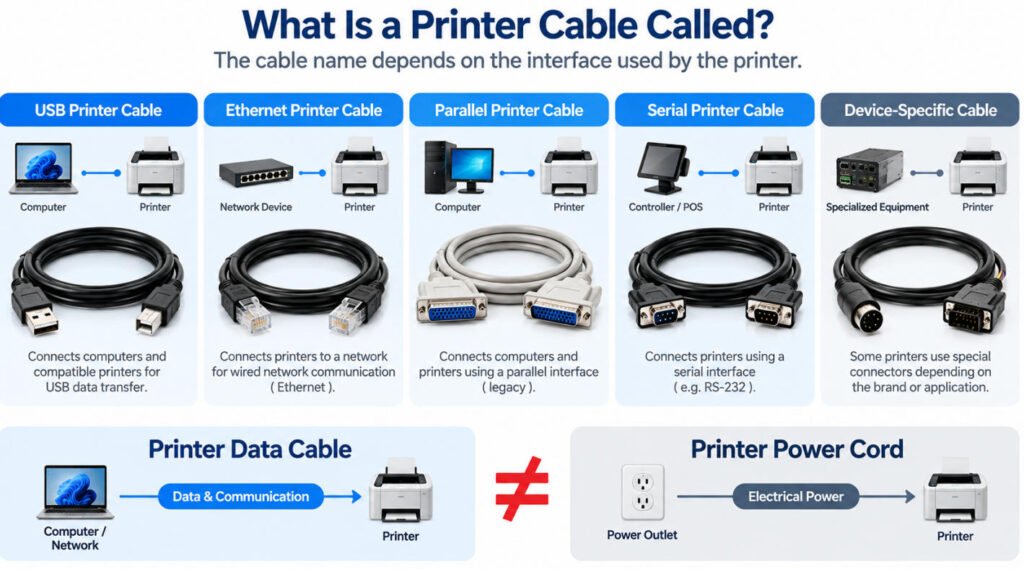
What Is a Printer Cable Called?
The name depends on the interface. A printer connection may use a USB printer cable, Ethernet cable, parallel cable, serial cable, or another device-specific interface.
There is no single technical name that applies to every printer connection cable.
In everyday searches, users may also call it a:
- Printer cable
- Printer wire
- Printer cord
- Computer printer cable
- Printer data cable
However, these terms are not always electrically precise.
For example, a printer data cable carries communication between the printer and another device, while a printer power cord supplies operating power to the printer. They are not the same thing.
That is why the correct name should ideally describe the actual interface, such as:
- USB printer cable
- Ethernet printer cable
- Parallel printer cable
- Serial printer cable
Is a Printer Data Cable the Same as a Printer Power Cord?
No. A printer data cable carries communication signals between the printer and another device. A printer power cord supplies electrical power to the printer.
Although both may be described informally as printer cords, they serve different functions and are not interchangeable.
What Are the Main Types of Printer Cables?
The main types of printer cables include USB, Ethernet, parallel, and serial cables. Each supports a different printer connection method, depending on the printer’s interface, communication requirements, and intended application.
Although USB is common for direct computer-to-printer connections, Ethernet is widely used for network printing, while parallel and serial connections remain relevant in certain legacy, point-of-sale (POS), and industrial printing systems.
Printer Cable Types and Their Typical Uses
| Printer Connection | Typical Purpose | Common Interface |
|---|---|---|
| USB | Direct printer-to-computer connection | USB-A or USB-C host to a compatible printer USB port |
| Ethernet | Network-connected printing | RJ45 Ethernet |
| Parallel | Legacy printer connection | IEEE 1284 / Centronics variants |
| Serial | Selected POS, industrial, and legacy printers | RS-232 or device-specific serial interface |
| Wireless | No printer data cable required for the wireless connection | Wi-Fi or another supported wireless system |
Which Printer Cable Do I Need?
The correct printer cable depends on the port on the printer, the port on the computer or network, and the type of connection the equipment supports.
If you are wondering what cable you need for your printer, follow these six steps before buying a replacement or specifying a cable assembly.
Step 1 Check the Printer Port
Identify the printer-side interface first. Common examples include USB, Ethernet, parallel, serial, or a device-specific connector.
Step 2 Check the Computer or Host Port
Confirm what the computer, laptop, controller, or other host system provides, such as USB-A, USB-C, Ethernet, or another compatible interface.
Step 3 Decide Between Direct USB and Network Connection
For a direct computer-to-printer connection, USB is common. For shared or network printing, Ethernet may be more appropriate when supported.
Step 4 Identify the Connector at Both Ends
Do not choose the cable by name alone. Confirm the physical connector on the host side and the printer side.
Step 5 Verify the Supported Interface
The connectors must not only fit physically; the equipment must also support the same communication interface.
Step 6 Confirm Cable Length and Installation Conditions
Consider cable length, routing, repeated bending, nearby interference sources, and whether the installation is office, industrial, or equipment-integrated.
How Do You Identify the USB Port on a Printer?
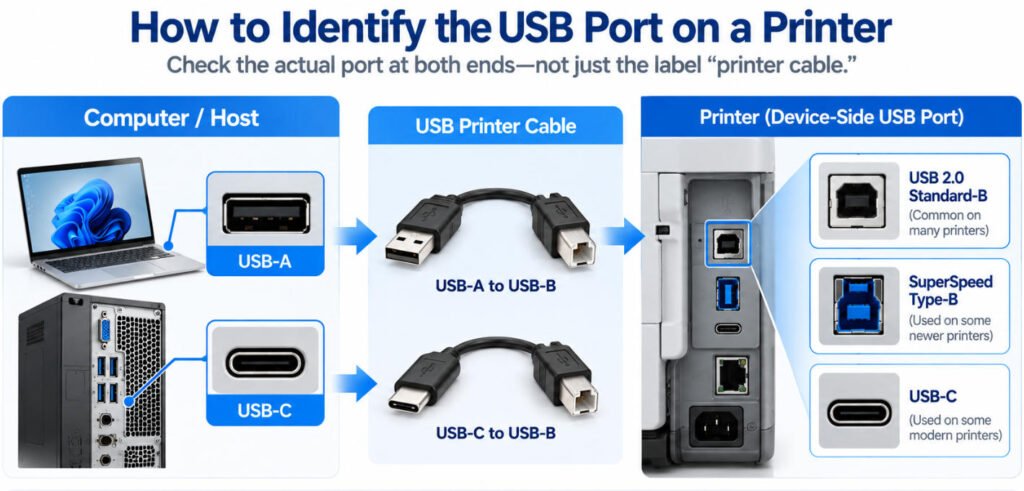
To identify the USB port on a printer, check the actual connector shape, port markings, and equipment documentation not just the printer brand or the phrase “printer cable.”
Different printers may use different USB connector configurations, even when they perform similar functions.
The most common USB port styles you may encounter include:
- Standard USB Type-B: A nearly square connector commonly found on traditional desktop and office printers.
- SuperSpeed USB Type-B: A larger, differently shaped Type-B connector used on certain USB 3.x-compatible devices.
- USB Type-C: A small, reversible connector found on some newer printers and specialized equipment.
On the computer or host side, the available port may be USB-A or USB-C.
Before selecting a cable, verify the connector at both ends and confirm that the printer and host support the intended USB connection. A matching connector shape alone does not establish complete compatibility.
From our cable assembly engineering perspective at Yihetai, accurate port identification is the first step toward preventing incorrect connector selection and installation problems.
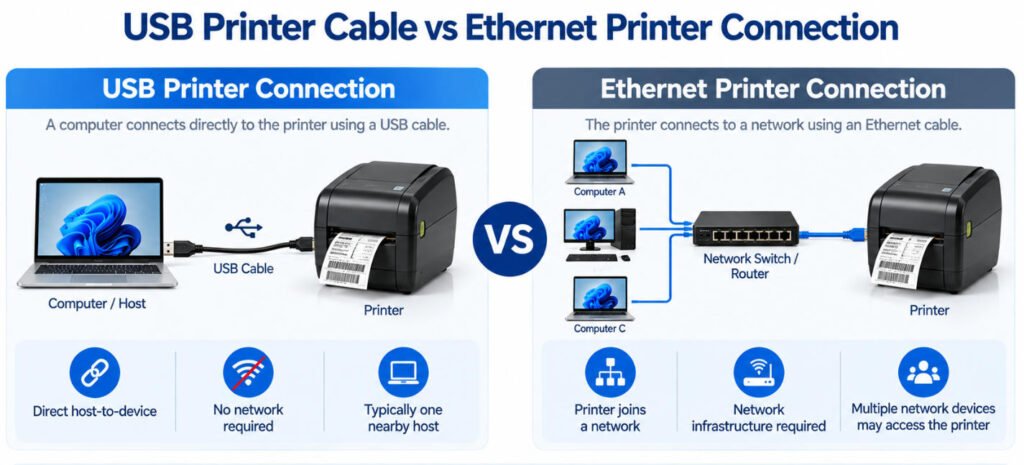
USB Printer Cable vs Ethernet Cable – What Is the Difference?
The main difference is how the printer connects to the system:
USB connects a host directly to a printer; Ethernet connects the printer to a network.
| Item | USB Printer Cable | Ethernet Printer Connection |
|---|---|---|
| Connection | Direct host-to-device connection | Printer joins a network |
| Typical Use | One nearby computer, controller, or host | Shared network environment |
| Connector | Depends on the supported USB ports | RJ45 |
| Network Required | No | Yes |
| Selection Basis | Host USB interface + printer USB interface | Printer network port + network infrastructure |
A USB printer cable is typically used when the printer connects directly to one computer or controller. An Ethernet connection is more suitable when the printer needs to communicate through a network and may be accessed by multiple systems.
In our experience, the choice should be based on the required system architecture rather than on which cable is more familiar.
USB is a direct peripheral connection. Ethernet is a network connection. They solve different connection requirements and should not be treated as interchangeable printer cables.
USB vs Parallel Printer Cable – What Is the Difference?
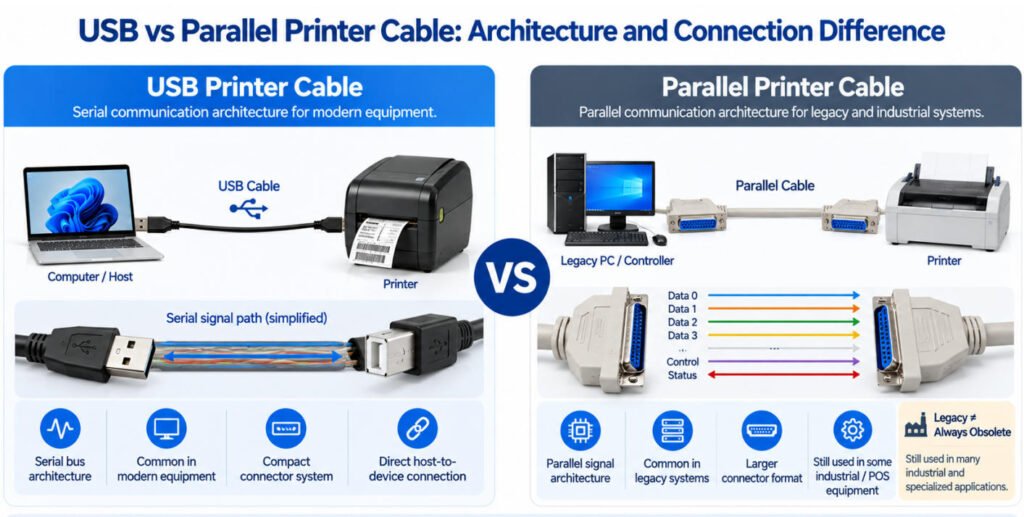
A USB printer cable and a parallel printer cable use different communication architectures and connector systems.
USB uses a serial bus architecture, while parallel printer interfaces are a legacy form of printer connectivity that transmit data through multiple signal lines. Parallel connections were widely used on older printers and may still appear in some industrial, POS, and legacy installations.
| Item | USB Printer Cable | Parallel Printer Cable |
|---|---|---|
| Communication | Serial bus architecture | Parallel data interface |
| Typical Application | Modern office printers, POS systems, and compatible industrial equipment | Older printers, legacy machinery, and selected industrial installations |
| Common Connector | USB connector appropriate to the equipment | DB25, Centronics-style, or other IEEE 1284 configurations |
| Signal Structure | Serial data signaling; USB 2.0 uses D+ and D− | Multiple data and control signal lines |
| Compatibility | Requires USB-compatible host and printer interfaces | Requires compatible parallel interfaces or appropriate conversion hardware |
The two cable types are not directly interchangeable just because both connect a printer to a computer or controller.
In our experience, old printer cable replacements should be selected by the actual port and interface specification, not by age or appearance alone.
Is “Printer Wire” the Same as a Printer Cable?
“Printer wire” is often used informally when people mean a printer cable, but technically a finished printer connection normally consists of multiple conductors, insulation, shielding where required, connectors, and an outer jacket not a single wire.
In everyday searches, someone looking for a printer wire may simply need a replacement cable to connect a printer to a computer. However, in cable assembly engineering, wire and cable have more specific meanings.
A wire generally refers to an individual electrical conductor, typically with insulation. A cable assembly combines the required conductors and other components into a finished connection designed for a particular electrical and mechanical application.
What Should You Call a Printer Wire When Ordering a Replacement?
For clearer communication with suppliers, the following terms are generally more useful:
- Printer cable: A general term for a physical printer connection.
- USB printer cable: A cable for a compatible USB printer interface.
- Printer data cable: Emphasizes the communication function.
- Printer interface cable: Identifies a cable associated with a particular communication interface.
- Printer connection cable: A general description when the exact interface is not yet known.
At Yihetai, we recommend using the specific interface, connector configuration, and circuit requirements in engineering drawings and purchasing documents.
Can Any USB Cable Be Used for a Printer?
No. The cable must use the correct connectors and support the data interface required by the printer and host. Not every USB cable is suitable for printer communication, even if its connector physically fits.
A reliable USB printer connection depends on four factors:
1. Physical Connector Compatibility
Both ends of the cable must match the printer and host ports. A printer may use a USB Type-B or another supported connector, while the computer may provide USB-A or USB-C.
However, connector fit does not by itself prove full compatibility.
2. Data Transmission Capability
Some USB cables are designed primarily for charging and may lack the data conductors required for communication.
A printer connection requires a cable that supports the appropriate USB data signals, not simply electrical power.
3. Supported USB Interface
The cable must support the USB interface and performance requirements of the connected equipment.
USB 2.0 and USB 3.x connections can have different conductor arrangements and signaling requirements. Connector compatibility and backward compatibility must be evaluated for the specific devices.
4. Complete System Compatibility
Even a correctly constructed USB data cable cannot guarantee successful printing if the host, printer, drivers, or operating system do not support the intended connection.
At Yihetai, we evaluate cable compatibility by checking connector specifications, circuit assignments, data transmission requirements, and installation conditions—not connector appearance alone.
Before selecting a USB printer cable, verify the complete connection path:
Physical Connector → Data Capability → Supported USB Interface → Complete System
This approach helps prevent incorrect cable selection and unnecessary troubleshooting.
Can You Connect a USB-C Laptop to a USB-B Printer?
Yes, when the printer and host interfaces support the required USB connection, a suitable USB-C-to-USB-B cable or supported adapter arrangement can be used.
Many modern laptops provide USB-C ports, while traditional office printers and certain industrial printers still use USB Type-B connections. This does not necessarily mean the printer needs to be replaced.
How Do You Connect a USB-C Laptop to a USB-B Printer?
There are two common approaches:
- USB-C to USB-B data cable: Connects a compatible USB-C host directly to the printer’s USB-B port.
- USB-C to USB-A adapter: Allows a suitable USB-A-to-USB-B printer cable to connect through a compatible USB-C adapter.
In either case, the cable and any adapter must support USB data communication, not just charging.
What Should You Check Before Connecting?
Verify the printer’s USB port type, the laptop’s USB-C data capability, and the supported USB interface. Also confirm that the operating system has the necessary printer driver or built-in printing support.
A USB-C connector does not automatically mean a faster printing connection. Actual performance depends on the printer, host, and supported USB interface.
At Yihetai, we recommend verifying connector compatibility and circuit requirements before selecting a cable assembly, especially for OEM equipment integration.
For connector configurations and custom assembly options, explore our USB-C to USB-B Printer Cable Solutions.
Does Printer Cable Length Matter?
Yes. Cable length can affect electrical performance, signal integrity, and installation reliability, but there is no single maximum length that applies to every type of printer cable.
A USB printer cable, Ethernet cable, parallel cable, and serial cable operate under different electrical and communication requirements. Their allowable lengths must therefore be evaluated separately.
What Determines the Maximum Printer Cable Length?
- Connection Technology
USB, Ethernet, parallel, and serial interfaces use different signaling methods. A cable length suitable for one interface may not work reliably with another.
- USB Generation and Equipment Requirements
For USB printer connections, supported cable length depends on the USB generation, signaling requirements, and equipment specifications. A length suitable for a USB 2.0 installation should not automatically be applied to a different USB configuration.
- Cable Construction
Conductor size, differential-pair geometry, shielding, and overall cable quality can influence voltage drop, signal attenuation, and susceptibility to electromagnetic interference (EMI).
- Passive vs. Active Cable Solutions
A passive cable relies on its physical construction to maintain signal quality. Longer connections may require a properly designed active extension, repeater, hub, or other interface-compatible solution.
- Total Connection Path
The complete link matters not just the length printed on one cable. Adapters, extension cables, hubs, and additional connectors can introduce losses or connection problems.
- Operating Environment
Industrial printers may operate near motors, variable-frequency drives, moving machinery, or other sources of electrical and mechanical stress. Cable routing, bend radius, strain relief, and EMI exposure can affect long-term reliability.
How Should You Choose the Right Printer Cable Length?
At Yihetai, our engineering approach is to verify the interface specification, equipment requirements, total connection path, cable construction, and installation environment before approving a cable length.
The correct printer cable length is the length that meets the system’s electrical and mechanical requirements not simply the longest cable available.
Why Is My Printer Not Detected When the USB Cable Is Connected?
If your printer is not detected when the USB cable is connected, possible causes include an incompatible or damaged cable, a loose connection, a faulty USB port, an adapter issue, or incorrect printer drivers and system settings.
A printer not being detected does not automatically mean the cable is defective.
Even when the USB cable is physically connected, the computer must successfully establish communication with the printer before it can recognize and use the device.
What Causes a USB Printer Not to Be Recognized?
- Incorrect or Incompatible USB Cable
The cable may have the correct connector shape but lack the data connections or interface compatibility required by the printer.
For example, a charging-only USB cable cannot provide the normal USB data communication needed for printer detection.
- Damaged Cable or Poor Cable Integrity
Broken conductors, damaged connectors, or intermittent internal connections can interrupt USB communication.
A cable may appear undamaged externally while having an internal electrical fault.
- Loose or Incomplete Connection
A USB connector that is not fully inserted may prevent reliable communication.
Check both ends of the cable for loose connections, contamination, or visible damage.
- Incorrect Printer Port
Some printers provide multiple connection ports for different purposes.
Confirm that the cable is connected to the printer’s intended USB device port, rather than a USB host port designed for accessories or external storage.
- USB Hub or Adapter Problems
A USB hub, docking station, or adapter may introduce compatibility, power, or communication issues.
If the printer is connected through an intermediate device, check whether that device supports the required USB connection.
- Computer USB Port Issues
The computer’s USB port may be damaged, disabled, or experiencing a temporary communication problem.
A working cable and printer may still fail to establish a connection through an unsuitable or malfunctioning host port.
- Missing or Incorrect Printer Drivers
The operating system may detect a USB device without installing or configuring the correct printer driver.
In this situation, the printer may not appear as an available printing device even though USB communication has been established.
- Printer Settings or Operating System Configuration
Printer connection settings, device status, operating system permissions, or configuration errors may also prevent normal detection.
Some printers require the appropriate interface mode to be enabled before USB communication can operate correctly.
How Can You Tell Whether the Printer USB Cable Is Faulty?
A cable fault becomes more likely if the printer works reliably with a known-good compatible cable under otherwise unchanged conditions.
However, this comparison is not conclusive in every case. Intermittent USB problems may also involve connectors, host ports, adapters, or printer electronics.
Can a Bad Printer Cable Cause Offline or Intermittent Printing?
A damaged or electrically unreliable cable can contribute to intermittent communication, disconnects, or detection problems, but printer-offline errors can also originate from software, drivers, network settings, or the printer itself.
A printer showing an Offline status does not automatically mean the printer cable is defective. The cause depends on how the printer is connected and when the problem occurs.
How Can a Faulty Printer Cable Affect Printing?
For a USB-connected printer, several physical or electrical problems can interrupt communication:
- Loose or worn connectors: Poor contact may cause the printer to disconnect when the cable or equipment moves.
- Damaged conductors: Repeated bending, crushing, or pulling can create intermittent open circuits.
- Inadequate strain relief: Mechanical stress near the connector can damage internal wire terminations.
- Signal-integrity problems: Excessive cable length, unsuitable construction, or poor shielding may contribute to unreliable USB communication.
In our cable assembly engineering work at Yihetai, we pay particular attention to connector retention, termination quality, and cable strain relief because a connection can pass a stationary test yet fail when subjected to movement.
How Do You Identify the Actual Cause?
If a USB printer repeatedly disconnects, inspect the cable and connectors, then test with a known-good compatible cable. If the problem occurs only when the cable moves, a mechanical connection fault becomes more likely.
If the printer remains connected but displays Offline, investigate the printer queue, driver, operating system settings, and device status. For network-connected printers, also check network connectivity and configuration.
The correct troubleshooting approach is to verify the communication path before replacing the cable.
Conclusion
The right printer cable depends on the printer port, host or network connection, interface type, and application requirements.
A simple selection path is:
Printer Port → Connection Type → Connector → Interface → Verification
Do not choose a cable by appearance alone.
If you need a custom USB printer cable assembly, send Yihetai your connector types, interface requirements, length, drawing, or sample for engineering review and quotation. Learn more about our Custom USB Printer Cable solutions.
Related Wire Harness Articles:
- Computer Cable Types: A Complete Guide to PC Cables, Connectors, Ports and Uses
- Shielded Cable Guide: Types, Foil vs Braid, Grounding, EMI Protection & How to Choose
- Wire Strain Relief Methods: Types, Design, Testing and How to Choose the Right Solution
- How to Choose the Right Material for Your Overmolded Cable Assembly (PVC, TPE, TPU)?