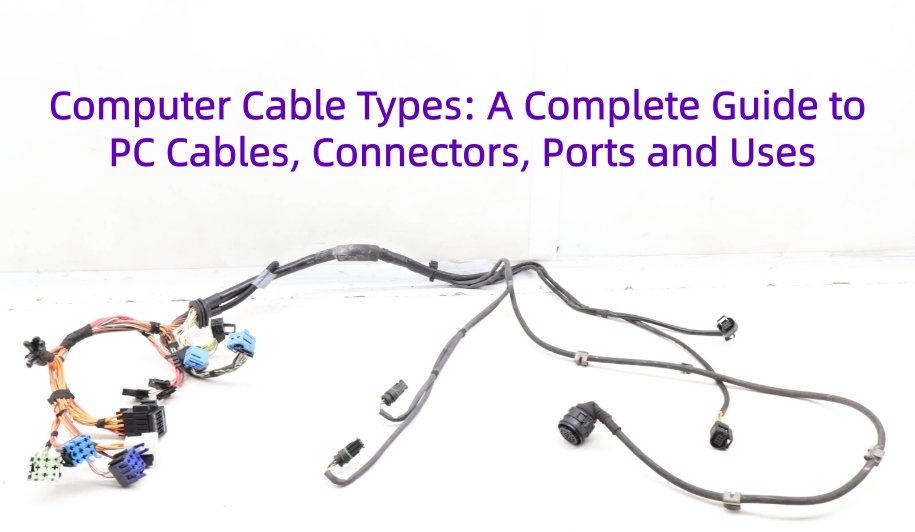
The main types of computer cables include USB cables for data and power, HDMI and DisplayPort cables for displays, Ethernet cables for networking, audio cables, internal SATA and power cables, and legacy connections such as VGA, DVI, PS/2, and serial cables. Each serves a different purpose, which is why understanding computer cable types, connectors, and ports is important when connecting or specifying PC equipment.
But connector shape alone does not always tell you what a cable can do. USB-C is a good example. Two computer cables may use the same USB-C connector while supporting different data rates, charging capabilities, video functions, protocols, or internal cable constructions.
In our cable assembly work, this is a common source of confusion. Whether you are identifying different computer cables, choosing the right PC cable type, or developing an OEM assembly, the connector is only the starting point. This blog will explains the major computer connector types, their uses, and the engineering differences that matter.
What Is a Computer Cable?
A computer cable is a cable assembly used to transmit data, video, audio, network signals, electrical power, or a combination of these functions between computers, peripherals, displays, network equipment, storage devices, and internal PC components.
The term computer cable is much broader than a USB cable. Common computer cables can be grouped by function into:
- Data Transmission – USB, Thunderbolt, serial and other data connections
- Video / Audio – HDMI, DisplayPort, DVI, VGA and audio cables
- Networking – Ethernet cables
- Storage – SATA and other storage connections
- Power – AC power cords and internal PC power cables
A typical connection can be understood as:
Device → Cable → Connector → Port → Device
It is also important to distinguish three terms that are often used interchangeably:
Cable – The complete cable construction, including conductors, insulation, shielding, outer jacket and end terminations as applicable.
Connector / Plug – The component attached to the end of the cable that mates with another interface.
Port / Receptacle – The interface on the computer or device that receives the compatible computer cable connector or plug.
Understanding these differences makes it easier to identify and compare different computer cable types correctly.
What Are the Main Types of Computer Cables?
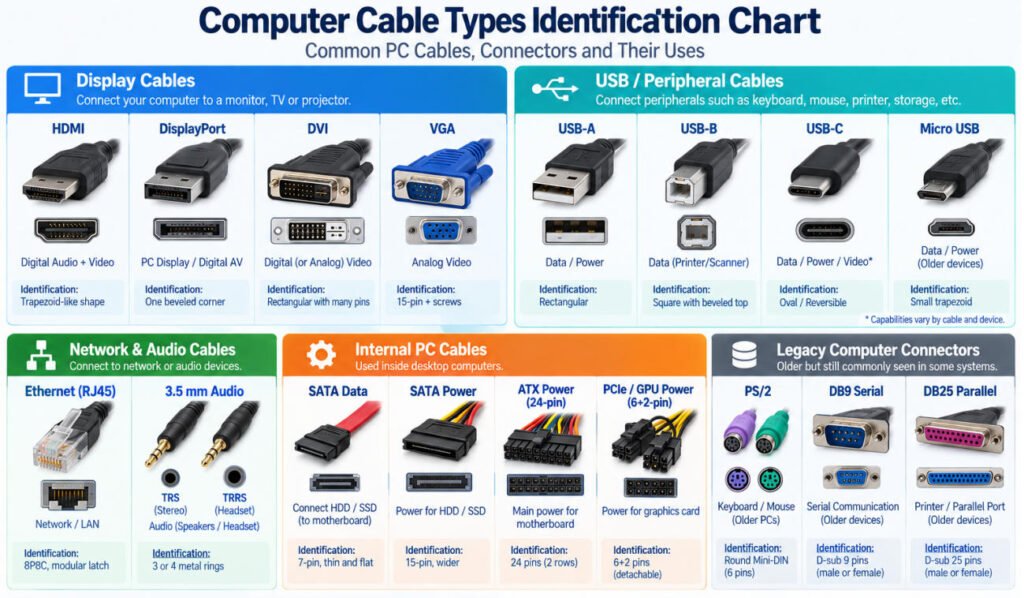
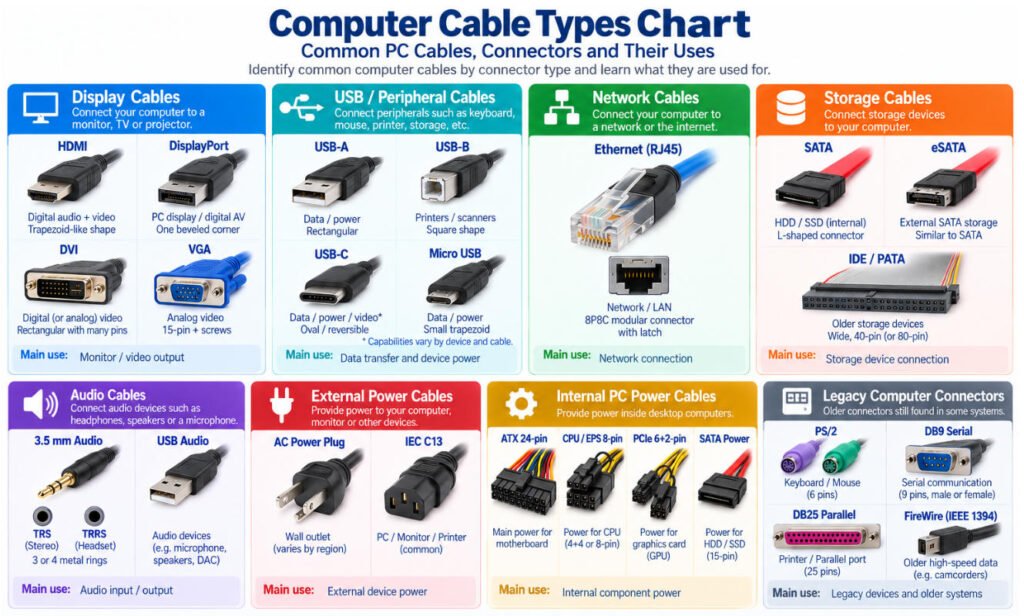
The main types of computer cables can be grouped by their function, including display, USB, network, storage, audio, external power, internal power, and legacy connections. Common examples include HDMI, DisplayPort, USB, Ethernet, SATA, 3.5 mm audio cables, and computer power cables.
Some computer cable types carry data, some carry audio or video, some provide power, and others can support multiple functions depending on the interface and device. The table below provides a quick overview of the most common PC cable types and their primary uses.
Computer Cable Types at a Glance
| Category | Common Cable Types | Main Use |
|---|---|---|
| Display | HDMI, DisplayPort, VGA, DVI, supported USB-C | Monitor and video connections |
| USB | USB-A, USB-B, USB-C, Mini USB, Micro USB | Data, power, and supported video functions |
| Network | Ethernet | Network and internet connections |
| Storage | SATA, eSATA, legacy IDE/PATA | Internal or external storage connections |
| Audio | 3.5 mm audio, USB audio | Headphones, speakers, microphones, and audio devices |
| External Power | AC power cord, IEC power cable | Power for desktop PCs, monitors, and related equipment |
| Internal Power | Motherboard, CPU/EPS, GPU/PCIe, SATA power | Power for internal PC components |
| Legacy | PS/2, Serial, Parallel, FireWire | Older computers and peripheral devices |
| Category | Common Cable Types | Main Use |
|---|---|---|
| Display | HDMI, DisplayPort, VGA, DVI, supported USB-C | Monitor and video connections |
| USB | USB-A, USB-B, USB-C, Mini USB, Micro USB | Data, power, and supported video functions |
| Network | Ethernet | Network and internet connections |
| Storage | SATA, eSATA, legacy IDE/PATA | Internal or external storage connections |
| Audio | 3.5 mm audio, USB audio | Headphones, speakers, microphones, and audio devices |
| External Power | AC power cord, IEC power cable | Power for desktop PCs, monitors, and related equipment |
| Internal Power | Motherboard, CPU/EPS, GPU/PCIe, SATA power | Power for internal PC components |
| Legacy | PS/2, Serial, Parallel, FireWire | Older computers and peripheral device |
Computer Cable Types vs Computer Connector Types: What Is the Difference?
Computer Cable Types vs Computer Connector Types: What Is the Difference?
A computer cable is the complete cable assembly, while a connector is the physical plug or receptacle used at the end of the cable or device.
These terms are often mixed together, but they describe different parts of the connection:
- Cable – The complete assembly that carries data, video, audio, network signals, or power.
- Connector / Plug – The termination at the end of the cable.
- Port / Receptacle – The mating interface on the computer or device.
For example:
USB cable ≠ USB-C connector
HDMI cable ≠ HDMI port
Ethernet cable ≠ 8P8C modular connector
The same connector family may also be used with cables that have different electrical capabilities. A USB-C connector, for example, can be used on cables with different data rates, power capabilities, or supported functions.
This is why computer connector types and computer cable types should not be treated as the same thing. When selecting computer cables and connectors, both the physical interface and the actual electrical requirements need to be confirmed.
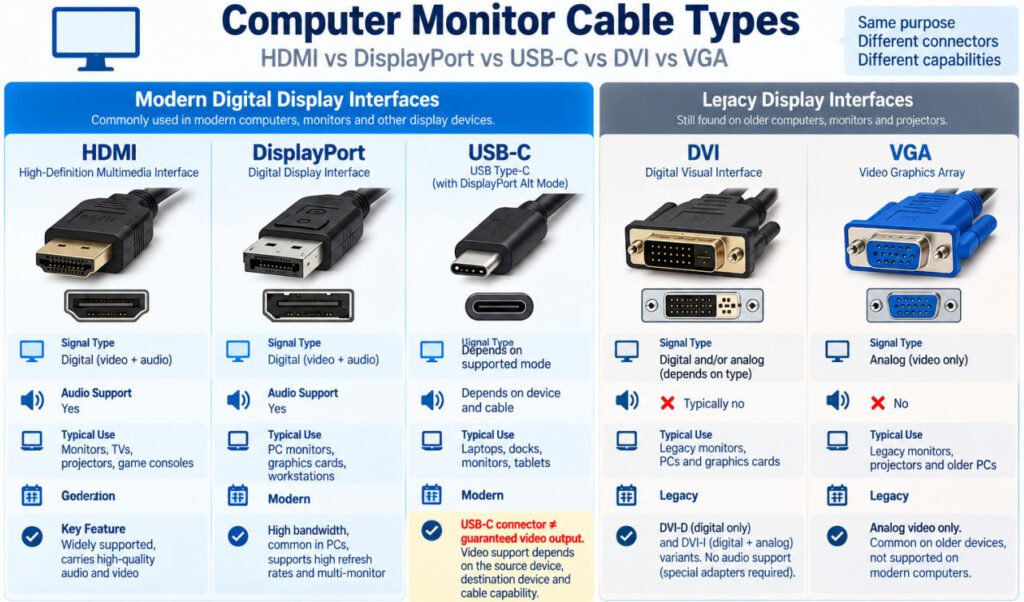
What Are the Main Computer Monitor Cable Types?
The main computer monitor cable types include HDMI, DisplayPort, USB-C, DVI, and VGA. These display cable types differ in signal format, audio support, connector design, and compatibility with computers and monitors.
HDMI Cable
An HDMI cable carries digital video and audio through a single connection. It is widely used for computers, monitors, TVs, projectors, and other display equipment.
HDMI is a common computer display cable, but compatibility still depends on the ports and capabilities of both devices.
DisplayPort Cable
A DisplayPort cable is a digital display cable commonly used between desktop PCs, graphics cards, docking stations, and computer monitors.
It can carry digital video and audio and is especially common in PC-focused display systems. When selecting DisplayPort, the source, monitor, cable, and required display mode should all be considered.
USB-C Display Cable
A USB-C display cable can carry video only when the source device, destination device, and cable support the required video function or protocol.
A USB-C connector by itself does not guarantee display output.
This is why two USB-C cables that look identical may behave differently when connected to a monitor.
DVI Cable
A DVI cable is mainly used with older computer monitors and graphics hardware.
Depending on the DVI type, the interface may support digital video, analog video, or both. DVI is primarily a video interface and is now mostly found on legacy PCs, monitors, and industrial display equipment.
VGA Cable
A VGA cable carries analog video and is one of the most recognizable legacy monitor connector types.
It uses a 15-contact D-sub interface and does not normally carry audio.
VGA is much less common on modern consumer PCs but can still be found on older monitors, projectors, industrial computers, and legacy equipment.
What Are the Main USB Cable and Connector Types?
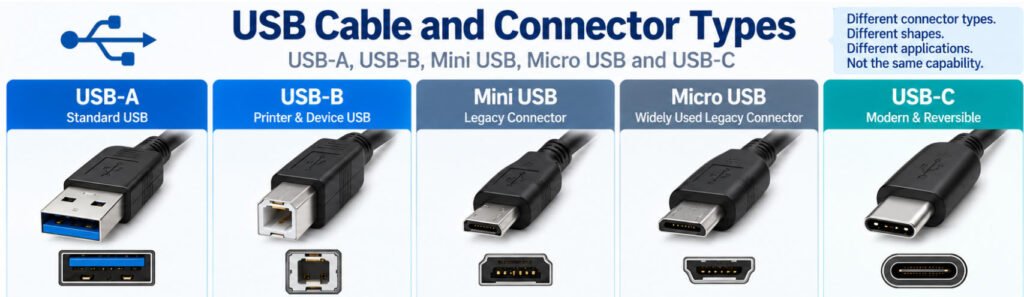
The main USB connector types used with computers and electronic devices include USB-A, USB-B, Mini USB, Micro USB, and USB-C. These connector names describe the physical interface, but they do not by themselves define the cable’s data speed, charging capability, or supported functions.
This distinction is important:
USB Connector Type ≠ USB Performance Level
Two USB cables with the same connectors can have very different electrical capabilities.
USB-A
USB-A is the familiar rectangular USB connector found on desktop computers, laptops, chargers, hubs, and many peripheral devices. It is commonly used to connect keyboards, mice, flash drives, printers, and other USB equipment.
USB-A describes the connector form factor not a specific USB generation. For this reason, we do not recommend identifying USB performance only by the color of the plastic insert. The actual cable and device specifications should be checked.
USB-B
USB-B is a larger, keyed connector commonly associated with printers, scanners, industrial equipment, audio interfaces, and other peripheral devices.
A typical USB computer cable may use USB-A on the computer side and USB-B on the device side. There are also different USB-B interface designs associated with different USB implementations, so connector shape and the required USB specification should both be confirmed when selecting or manufacturing a replacement cable.
Mini USB
Mini USB was widely used before Micro USB and USB-C became common. It can still be found on older cameras, GPS devices, measurement equipment, controllers, and industrial electronics.
Several Mini USB connector configurations exist, so identifying the exact interface matters when replacing an older cable. In OEM replacement projects, we normally verify the mating connector, pinout, cable construction, and required data or power function rather than selecting a cable based only on the term “Mini USB.”
Micro USB
Micro USB is smaller than Mini USB and has been widely used in smartphones, accessories, embedded electronics, and other compact devices.
Micro-B is one of the most recognizable versions, but Micro USB is not a single universal connector configuration. When specifying a custom cable, the exact interface, pinout, data requirement, charging current, cable length, and shielding should be defined.
USB-C
USB-C uses a compact, reversible connector and is now common on laptops, monitors, docking stations, smartphones, and many modern electronic devices.
However, USB-C is where cable identification becomes more complicated. A USB-C cable may support different combinations of data transfer, power delivery, and video, depending on the cable and connected devices.
Two USB-C cables can therefore look almost identical while having very different capabilities.
For OEM projects, specifying only “USB-C to USB-C” is not enough. We need to confirm the required data rate, charging power/current, video requirements if applicable, cable length, shielding, and other electrical specifications before defining the cable construction.
From a manufacturing perspective, this is why we separate USB cable types from USB connector types. The connector tells us how the cable mates; the complete cable specification tells us what the assembly must actually do.
Does Every USB-C Cable Have the Same Capabilities?
No. Two USB-C cables can use the same connector shape while supporting different data speeds, charging capabilities, video functions, and protocols.
The actual capability of a USB-C cable depends on several design factors, including:
- Conductor construction
- Number of wired contacts
- Shielding
- Cable length
- E-marker or cable design where applicable
- Supported protocol
- Source and device capability
For example, one USB-C charging cable may be designed mainly for power delivery, while another USB-C data cable may support higher-speed data transfer and additional functions. A USB-C cable may also support display output only when the cable, source device, and destination device all support the required video mode.
The key point is:
Same connector ≠ same cable capability
This is why different USB-C cable types should be selected by their required function and specification not only by the fact that both ends use USB-C connectors.
Manufacturer Insight: For a custom USB-C cable assembly, we confirm the required data function, power requirement, pinout, shielding, cable length, and device interface before defining the cable construction.
What Is the Difference Between USB-C and Thunderbolt?
What Is the Difference Between USB-C and Thunderbolt?
USB-C describes the physical connector, while Thunderbolt describes a high-speed interface technology that uses USB-C connectors in modern implementations.
This distinction is important because USB-C and Thunderbolt are not simply two different connector shapes.
A computer may have a USB-C-shaped port without supporting Thunderbolt. Likewise, a USB-C cable is not automatically a Thunderbolt cable just because the connectors physically fit.
The easiest way to think about USB-C vs Thunderbolt is:
USB-C = Connector Form Factor
Thunderbolt = Interface Technology / Capability
Actual functionality depends on the computer, connected device, cable, and supported specification. Depending on the implementation, this can affect data transfer, display support, power delivery, and other functions.
From an OEM cable manufacturing perspective, specifying only “USB-C cable” is therefore not enough when Thunderbolt capability is required. The required interface specification, data performance, power requirements, cable length, and device compatibility should all be confirmed.
A USB-C connector tells you how the cable physically connects it does not by itself tell you everything the cable can do.
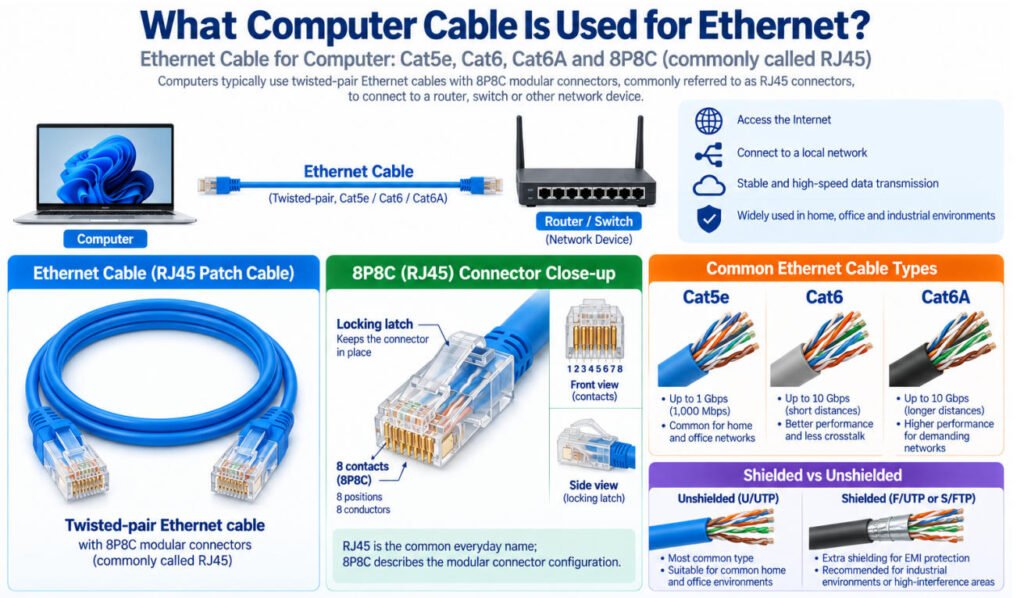
What Computer Cable Is Used for Ethernet?
What Computer Cable Is Used for Ethernet?
A computer network cable used for Ethernet is typically a twisted-pair cable terminated with an 8P8C modular connector, commonly referred to as an RJ45 connector in everyday networking terminology.
Common Ethernet cable categories used with computers include:
- Cat5e – Common for general Ethernet networking
- Cat6 – Used for higher-performance network installations
- Cat6A – Designed for higher-frequency and higher-performance Ethernet applications
An Ethernet cable for a computer may also be unshielded or shielded, depending on the installation environment and EMI requirements.
The correct RJ45 cable should be selected according to the required network performance, cable category, shielding, length, connector construction, and equipment interface.
What Are the Main Computer Audio Cable Types?
Common computer audio cable types include 3.5 mm TRS, 3.5 mm TRRS, RCA, and USB audio cables. The correct cable depends on whether the connection carries stereo audio, microphone signals, or digital audio.
3.5 mm TRS
A 3.5 mm TRS connector has three conductive sections: Tip, Ring, and Sleeve. It is commonly used for stereo analog audio connections such as headphones, speakers, and PC audio outputs.
A typical stereo configuration uses separate left and right audio channels plus a common return, although the actual pinout should always be confirmed for the application.
3.5 mm TRRS
A 3.5 mm TRRS connector adds a second ring, giving four conductive sections. It can support additional functions such as a microphone connection in addition to stereo audio.
However, the same 3.5 mm TRRS connector does not guarantee the same pinout. Different wiring standards or device-specific configurations may assign the contacts differently.
RCA
RCA cables are still used with some desktop audio systems, amplifiers, speakers, sound equipment, and older multimedia devices.
For stereo analog audio, separate RCA connectors are commonly used for left and right channels. RCA is less common as a direct connection on modern computers but remains relevant when connecting PCs to external audio equipment.
USB Audio
USB audio cables carry digital data between a computer and compatible audio equipment such as DACs, audio interfaces, microphones, headsets, and speakers.
Depending on the equipment, the cable may use USB-A, USB-B, USB-C, or another USB connector configuration. The connector type alone does not define the supported USB or audio performance.
For computer audio connector types, one practical rule is especially important:
Same 3.5 mm Connector ≠ Same Pinout or Function
In our cable assembly work, when an OEM specifies a custom PC audio cable, we confirm the connector type, number of contacts, pinout, cable construction, shielding, conductor arrangement, and device interface before production. This prevents a cable from physically fitting the equipment but having the wrong channel or microphone wiring.
What Are the Main Computer Power Cable Types?
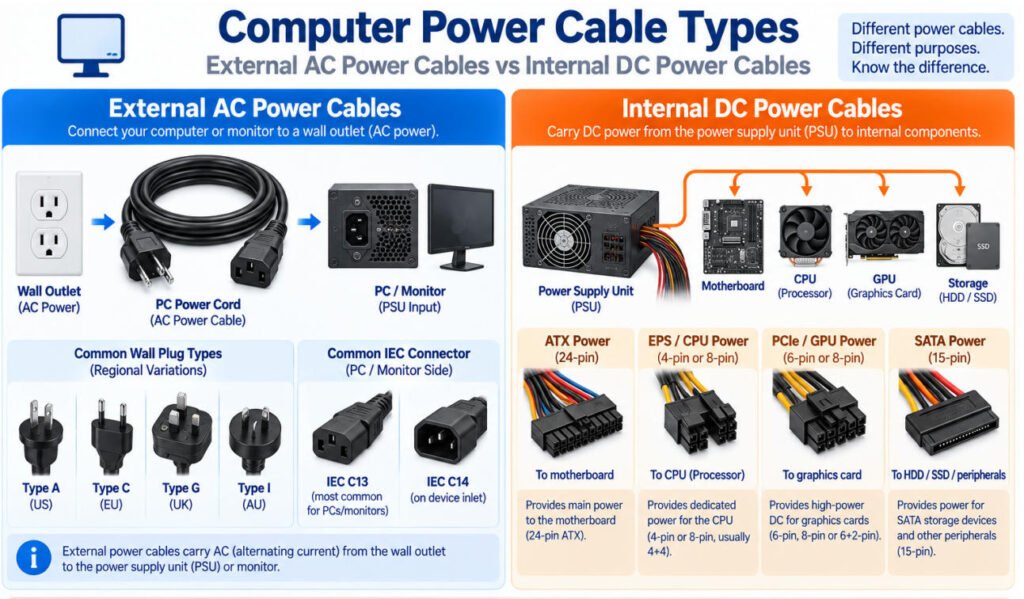
The main computer power cable types can be divided into two groups: external AC power cables and internal DC power cables.
External AC Power Cables
An external PC power cord carries AC power from the wall outlet to the computer power supply, monitor, or other equipment.
A typical connection looks like:
Wall Outlet → Power Cord → PSU / Monitor
Many desktop computers and monitors use connectors from the IEC connector family, with the exact wall plug depending on the country or region.
When selecting an external computer power cable, the connector type, voltage/current rating, cable length, conductor size, and applicable safety requirements should be confirmed.
Internal DC Power Cables
Inside a desktop PC, the power supply converts AC input into DC power and distributes it to the motherboard, CPU, graphics card, storage devices, and other components.
Common internal computer power connector types include:
- ATX motherboard power – Supplies the main motherboard
- EPS / CPU power – Supplies the processor power circuitry
- PCIe / GPU power – Supplies compatible graphics cards and expansion hardware
- SATA power – Supplies SATA HDDs, SSDs, and other peripherals
These motherboard power connectors and internal power cables may look similar in some systems, but their wiring and intended functions can differ.
Important: Modular PSU cables should not be assumed to be interchangeable simply because the PSU-side connector physically fits.
A cable with the wrong pinout can route power to the wrong contacts. For replacement or custom PC power cable types, the PSU model, connector part number, pinout, conductor size, current requirement, and destination device should all be verified.
What Are Legacy Computer Cable Types?
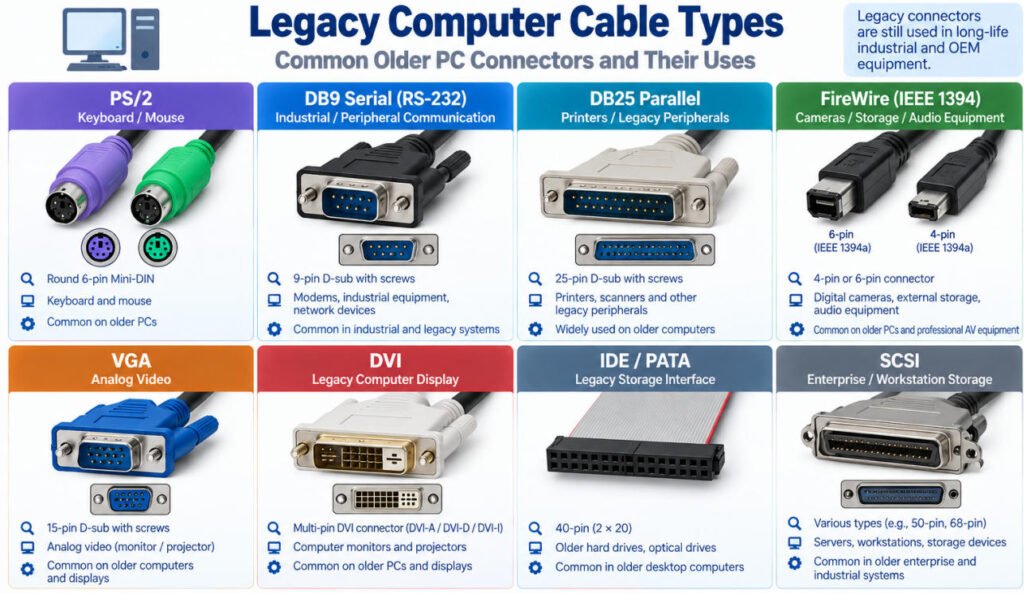
Legacy computer cables are older cable and connector types that have largely been replaced in modern consumer PCs but are still found in industrial equipment, medical devices, test systems, automation hardware, and older peripherals.
Common old computer cable types include:
PS/2
PS/2 uses a round Mini-DIN connector and was commonly used for keyboards and mice on older desktop computers.
Serial / RS-232
Serial cables, often using DB9 connectors, were widely used for legacy peripherals, industrial communication, test equipment, control systems, and service interfaces.
Parallel
Parallel cables were commonly used with older printers and peripheral devices, typically through larger multi-pin D-sub style connectors.
FireWire
FireWire was a high-speed peripheral interface used with cameras, storage devices, audio equipment, and some professional electronics before USB became more dominant.
VGA and DVI
VGA and DVI are legacy computer display interfaces. VGA carries analog video, while DVI may support digital, analog, or both depending on the DVI type. These interfaces are covered in more detail in the monitor cable section above.
Legacy connectors have not completely disappeared. Industrial, medical, test, and automation equipment often remains in service for many years, so OEM replacement cables, retrofit assemblies, and equipment harnesses may still require PS/2, serial, D-sub, VGA, DVI, or other older interfaces.
For these applications, the exact computer connector type, pinout, cable construction, shielding, and mating interface should be verified rather than relying only on the appearance of the plug.
How Do You Identify a Computer Cable?
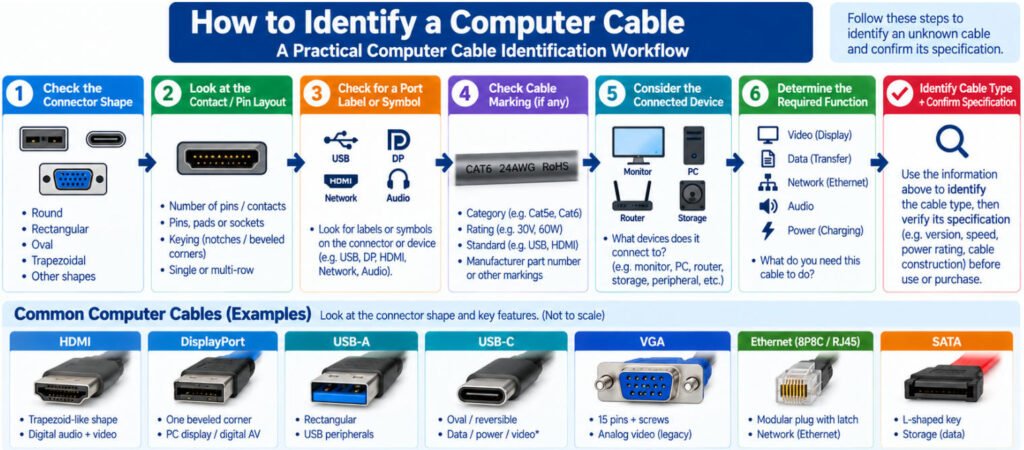
The most reliable way to identify an unknown computer cable is to follow a simple process:
Connector Shape → Contact / Pin Layout → Port Label → Cable Marking → Connected Device → Required Function
This method is more accurate than identifying the cable by color or connector shape alone.
Step1. Check the Connector Shape
The connector shape can quickly narrow down the possible computer cable name.
For example:
- HDMI: Flat connector with a tapered/trapezoid-like mating shape
- DisplayPort: Rectangular connector with one beveled corner
- USB-A: Flat rectangular connector
- USB-C: Small oval, reversible connector
- VGA: 15-contact D-sub connector with screw locks
- Ethernet: 8P8C modular plug with a retention latch, commonly called RJ45
- SATA: Thin, keyed connector with a distinctive L-shaped interface
Step2. Inspect the Contacts and Keying
Next, look at the pins, pads, sockets, keying features, and locking method.
This is particularly useful when two computer connectors have similar overall dimensions. Do not force an unknown connector into a port simply because it appears close to the correct size.
Step3. Check the Port Label or Symbol
Look at the computer or device port for a printed label or symbol. USB, DisplayPort, Thunderbolt, Ethernet, audio, and other interfaces may have identifying markings near the port.
These markings can help distinguish connectors that otherwise look similar.
Step4. Read the Cable Markings
Check the cable jacket and connector housing for manufacturer information, category markings, electrical ratings, certification marks, or other specifications.
For example, an Ethernet cable may show a category such as Cat5e, Cat6, or Cat6A. Other cables may include information related to voltage, temperature, data capability, or manufacturer part number.
Step5. Identify What the Cable Connects
The connected equipment provides another useful clue.
A cable running between a graphics card and monitor is likely associated with a display interface, while a cable between a PC and network switch is likely Ethernet. Internal cables connecting storage devices may be SATA data or SATA power cables.
Step6. Confirm What the Cable Needs to Do
Finally, determine whether the cable needs to carry video, audio, data, network signals, or power.
This step is important because:
Identifying the connector does not always identify the cable’s full electrical capability.
USB-C is the clearest example. Two cables can have identical USB-C connectors while supporting different data speeds, charging capabilities, video functions, or protocols.
In our factory, when an OEM sends us an unknown cable for replacement, computer plug identification is only the first step. We also verify the pinout, conductor construction, wire gauge, shielding, cable OD, length, electrical requirements, and connected equipment before defining the replacement assembly.
How Do You Choose the Right Computer Cable?
he best way to choose a computer cable is to start with the device requirement, not just the connector shape.
A practical computer cable selection process is:
Device Port → Required Function → Protocol / Capability → Data / Video / Power Requirement → Cable Length → Environment → Connector → Cable Construction
6 Keys item to check include:
- Check Connector Compatibility
- Define the Required Function and Performance
- Consider Cable Length
- Evaluate the Installation Environment
- Choose the Connector Orientation
- Verify the Complete Cable Construction
Conclusion
Modern computer cable types should not be selected by connector shape alone. A better selection logic is:
Device → Port → Required Function → Interface / Protocol → Cable Capability → Environment
For an OEM or custom computer cable assembly, engineers should also confirm the cable construction, connector, pinout, shielding, length, mechanical requirements, and testing criteria before production.
In our experience, many compatibility problems come from assuming that a physically matching connector will provide the required electrical performance.
If you are developing a custom cable, send Yihetai your drawing, BOM, connector part numbers, sample, pinout, and performance requirements for engineering review and quotation from an experienced computer cable manufacturer and computer cable assembly manufacturer.
Related Wire Harness Articles:
- AV Cable Guide: Types, AV In/Out, Connectors, Adapters & Custom Design
- What Are the Main Wire Harness Components? Complete Parts and Selection Guide
- What Is a Wiring Harness? A Complete OEM Guide to Types, Components, Manufacturing, Testing and Supplier Selection
- How to Choose the Right Material for Your Overmolded Cable Assembly (PVC, TPE, TPU)?